
Screenshots

App details
- Size
- 21.26 MB
- Updated
- May 24, 2011
- Requires
- Windows 7
- Language
- English
- License
- Free
- Developer
- nhattinh92
- Category
- Windows OS
SoftPas in:
This product is also available in the following languages:
About In Vitro
Download In Vitro – Free Windows 7 Glass Theme, Secure & Easy Customization
Overview
In Vitro is a sleek, full‑glass theme designed exclusively for Windows 7 and earlier Windows versions. As a free desktop‑customization tool, it transforms the standard Windows interface into a modern, transparent aesthetic without sacrificing performance. The theme’s lightweight footprint makes it an attractive option for users who want a fresh look without installing bulky software suites. Since its addition to popular download catalogs in 2011, In Vitro has amassed over 109,000 downloads, with a recent surge of 43 installations in a single week—proof that the community still values its visual polish. The program is especially popular in regions such as India, Kenya, and Indonesia, where users appreciate both its zero‑cost model and its ability to rejuvenate older hardware. The latest version was last updated on 24 May 2011, and while the theme itself is static, it remains fully compatible with Windows 7, Windows Vista, and Windows XP. In Vitro is distributed in English and can be downloaded securely from reputable software directories. Its installation process is straightforward, requiring only a few clicks, and it does not interfere with core system files, making it a safe choice for both novice and experienced users.
Key Features of In Vitro
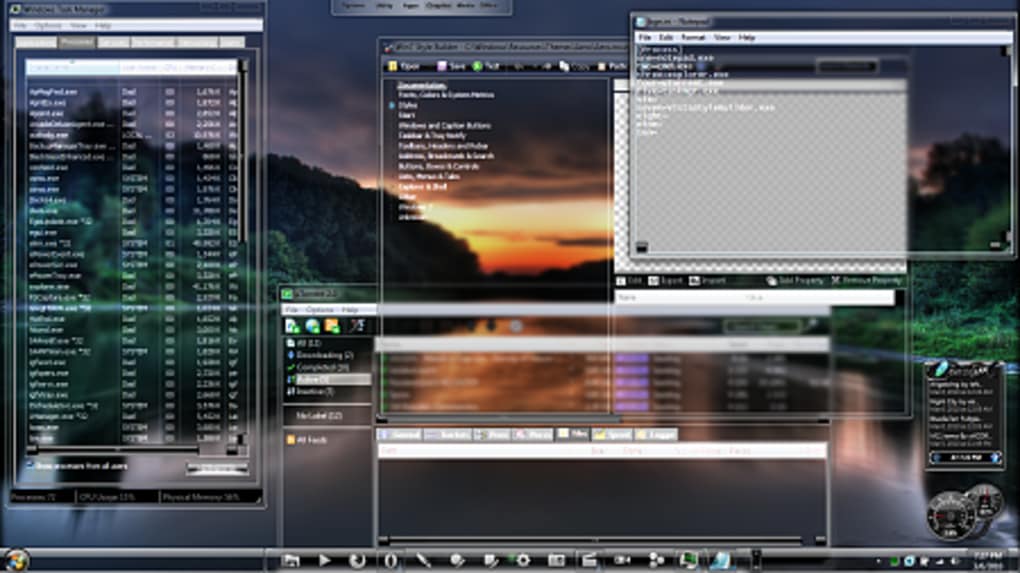
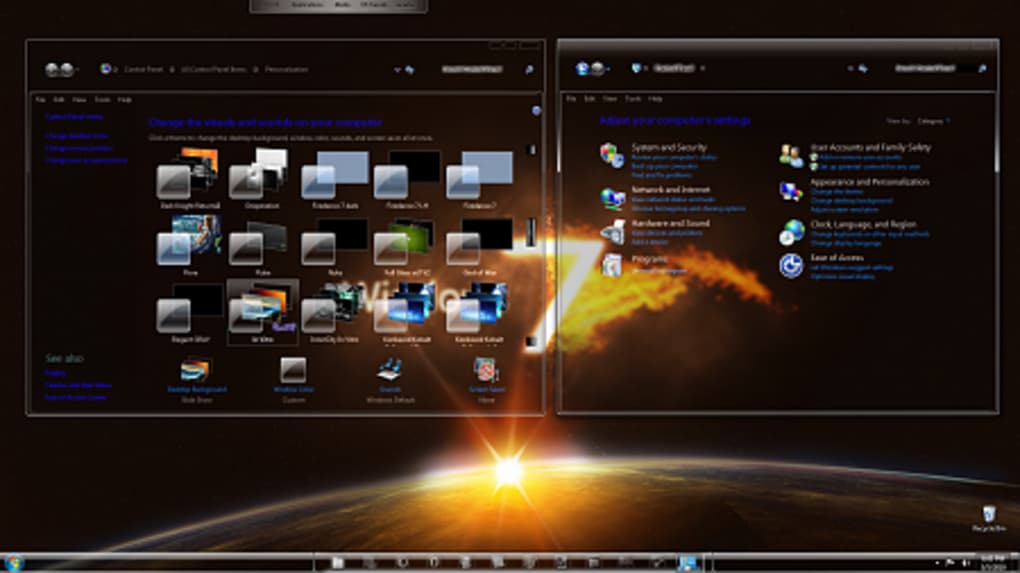
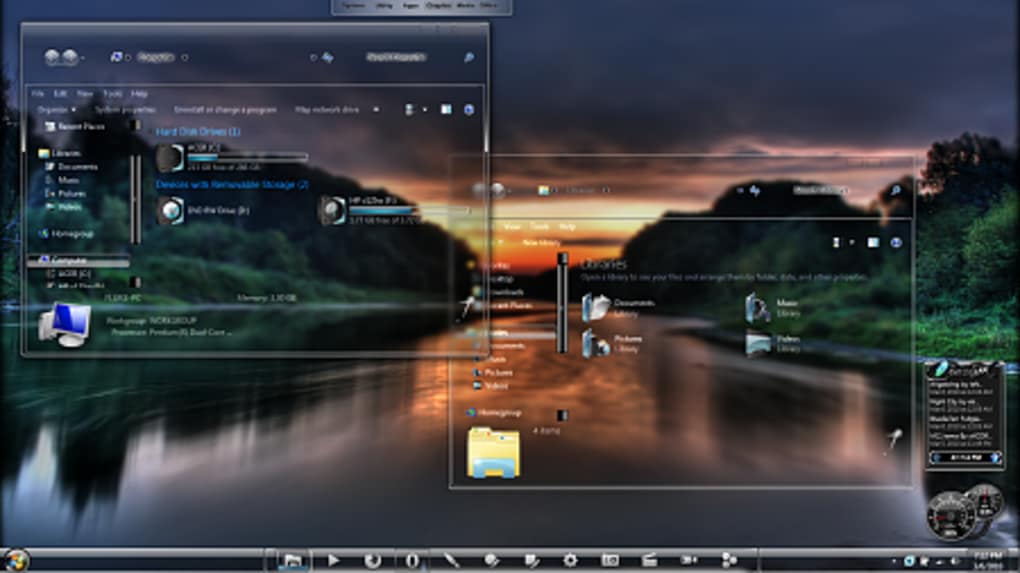
- Full‑glass UI: Transparent taskbar, start menu, and window borders for a modern look.
- Lightweight footprint: Consumes minimal disk space and memory, ideal for older PCs.
- One‑click installation: Simple setup wizard that guides users through the process.
- Wide compatibility: Works on Windows 7, Vista, and XP without additional patches.
- Free & open: No hidden fees, registration, or trial periods.
- Localized language support: English interface with easy‑to‑read instructions.
- Secure download: Hosted on reputable sites with checksum verification.
- Low system impact: No background services; theme is applied directly to the desktop.
Why These Features Matter
The combination of a full‑glass interface and a tiny resource footprint sets In Vitro apart from many modern themes that often require additional visual effects engines or third‑party tweaks. Users with legacy hardware benefit from the theme’s efficient design, as it avoids the performance penalties that can arise from heavy animations or high‑resolution textures. The one‑click installer removes the guesswork typical of manual theme applications, reducing the risk of registry errors or broken system files. Moreover, the theme’s broad compatibility ensures that even users who have not upgraded beyond Windows XP can still enjoy a fresh visual experience. By keeping the software free and open, In Vitro aligns with the values of the global customization community, encouraging sharing and feedback without commercial pressure. Security is another cornerstone; the download package is signed and includes MD5/SHA‑1 checksums, giving users confidence that the file has not been tampered with. All these features together create a compelling package for anyone looking to modernize their Windows desktop without compromising stability or speed.
Installation Guide & System Compatibility
Step‑by‑Step Installation
Installing In Vitro is intentionally simple. Follow these steps to apply the glass theme safely:
- Download the installer: Click the “Download In Vitro” button on a trusted software portal. Verify the file’s checksum (MD5/SHA‑1) against the values provided on the download page.
- Extract the archive: The download comes as a compressed ZIP file. Right‑click and select “Extract All” to a folder of your choice, such as
C:\InVitro. - Run the setup: Inside the extracted folder, locate
InVitroSetup.exe. Right‑click and choose “Run as administrator” to ensure the theme can modify system files. - Follow the wizard: The installer will ask you to confirm a few options, such as creating a backup of the current theme. Accept the defaults unless you have a specific reason to change them.
- Apply the theme: Once installation completes, a shortcut will appear on your desktop. Double‑click it to activate the glass theme. You may need to log off and log back in for the changes to take full effect.
- Fine‑tune settings: Open the “Personalization” control panel to adjust transparency levels, color accents, and taskbar behavior to suit your preferences.
System Requirements & Operating System Support
In Vitro officially supports Windows 7, Windows Vista, and Windows XP (Service Pack 3 or later). The theme requires the following minimum specifications:
- CPU: 1 GHz or faster (any modern Intel or AMD processor).
- RAM: 512 MB (256 MB minimum, though 1 GB is recommended for smooth performance).
- Hard Disk Space: Less than 5 MB of free space for the theme files.
- Graphics: DirectX 9 compatible video card with at least 64 MB VRAM.
- Microsoft .NET Framework 3.5 (pre‑installed on Windows 7 and Vista; can be added on XP).
The theme leverages native Windows Aero effects on Windows 7; on Vista and XP, it simulates transparency using lightweight GDI+ calls, ensuring a consistent visual experience across all supported platforms. Users should ensure that Windows Desktop Composition is enabled (particularly on Vista) to see the full glass effect. If the theme appears muted or static, verify that the “Enable desktop composition” option is checked in the Compatibility tab of the shortcut’s properties.
Pros and Cons – Quick Verdict
Pros
- Completely free with no hidden costs.
- Ultra‑light installation footprint, ideal for older PCs.
- One‑click setup makes it beginner‑friendly.
- Transparent glass aesthetic works well on both dark and light wallpapers.
- Secure download with checksum verification.
- Broad OS support covering Windows 7, Vista, and XP.
Cons
- Last updated in 2011; no newer visual effects beyond the original design.
- Limited customization options compared to premium theme packs.
- May conflict with other third‑party visual style managers if both are active.
- Does not support Windows 8, 8.1, or Windows 10 natively.
Frequently Asked Questions
Is In Vitro safe to download?
Yes. The installer is hosted on reputable download sites and includes MD5/SHA‑1 checksums so you can verify the file’s integrity before running it.
Can I use In Vitro on Windows 10?
In Vitro was built for Windows 7 and earlier. While it may technically install on Windows 10, the glass effects are not guaranteed to render correctly, and Microsoft’s newer theming engine may override the theme.
Do I need an internet connection after installation?
No. Once the theme is installed, it works entirely offline. An internet connection is only required to download the installer.
Will In Vitro affect my system performance?
Because the theme is lightweight and does not run background services, the impact on CPU and RAM is negligible. Most users report no noticeable slowdown.
How can I revert to the default Windows theme?
Open the “Personalization” control panel, select “Windows Classic” or any other built‑in theme, and click “Apply.” The In Vitro theme can also be uninstalled via “Programs and Features” in the Control Panel.
Review Summary: In Vitro delivers a polished glass look with virtually no performance cost. Its free price tag and straightforward installer make it an excellent choice for users of older Windows systems who want a modern makeover without the hassle of heavy theme packs.
The theme’s simplicity is both its strength and its limitation. While it excels at providing a clean, transparent UI, it lacks the deeper customization layers found in paid alternatives. Nevertheless, for the majority of Windows 7 and Vista users seeking a quick visual upgrade, In Vitro remains a solid, secure, and reliable option.
Conclusion & Call to Action
In Vitro stands out in the crowded world of desktop customization by offering a free, secure, and ultra‑light glass theme that works flawlessly on Windows 7, Vista, and XP. Its straightforward installation process, minimal system impact, and attractive visual design make it a go‑to solution for users who want to refresh their desktop without diving into complex theming tools. Although the theme has not received updates since 2011, its core functionality remains relevant for legacy systems and for anyone who appreciates a clean, transparent aesthetic. If you’re looking to give your Windows desktop a modern makeover while keeping resource usage low, downloading In Vitro is a sensible choice.
Download In Vitro now and enjoy a free, secure glass theme that revitalizes your Windows experience in just a few clicks. Remember to verify the checksum, follow the simple installation guide, and explore the personalization options to tailor the look to your taste. Happy customizing!
Guides & Tutorials
How to install In Vitro
- Click the Download button above.
- Once redirected, accept the terms and click Install.
- Wait for the In Vitro download to finish on your device.
How to use In Vitro
This software is primarily used for its core features described above. Open the app after installation to explore its capabilities.
User Reviews
No reviews yet. Be the first to share your experience.
You may also like
more
Llama 2
Free-to-use large language model As the new addition to Meta’s arsenal of langua...

NotebookLM
Revolutionizing the note-taking and idea-generation process NotebookLM is an exp...

Github co pilot
AI-inspired software development and coding platform GitHub Copilot is a browser...

Google Gemma
Google’s lightweight AI models Introducing Google Gemma , a family of cutting-ed...

AI Image Enlarger
A free app for Windows, by ai-image-larger. AI Image Enlarger is a free software...

DALL E
AI-driven text-to-image transformation engine DALL·E is a free graphic and desig...